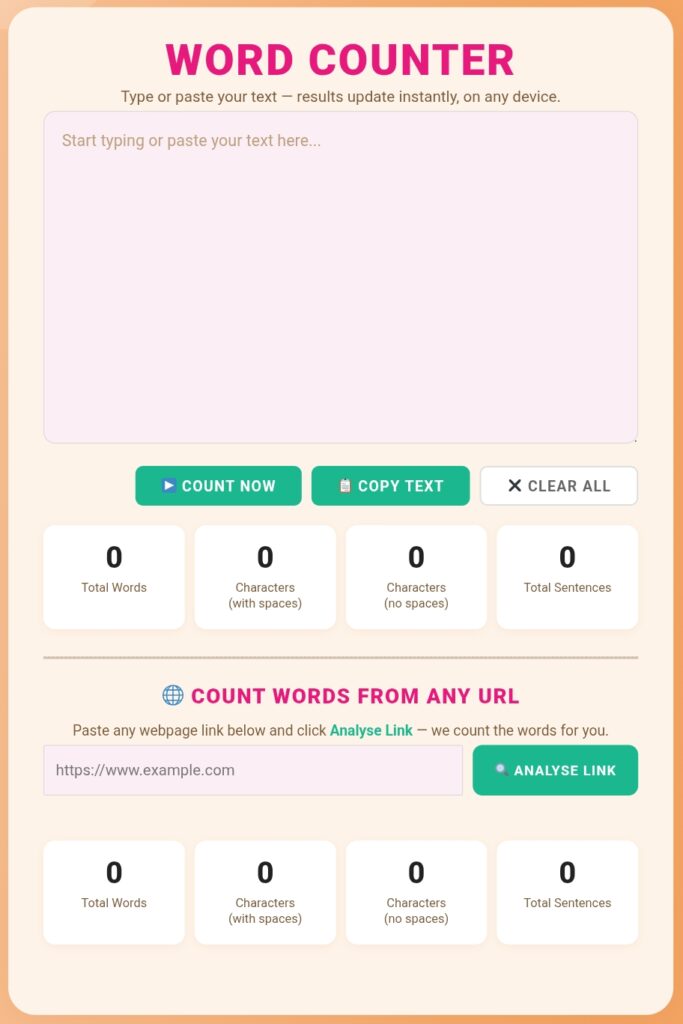
Type or paste your text — results update instantly, on any device.
(with spaces)
(no spaces)
Paste any webpage link below and click Analyse Link — we count the words for you.
(with spaces)
(no spaces)
Counting Words by Hand Is a Waste of Your Time
I am going to tell you something obvious — but something most people still do not act on. If you are manually scrolling through a document trying to guess your word count, or doing that thing where you select all the text and hope some number appears at the bottom of your screen, you are wasting time you could spend actually writing.
A word counter tool does one job. It counts — words, characters, sentences — instantly, accurately, and without you doing anything other than typing or pasting your text. That is it. No sign-up. No waiting. No payment.
This tool at jisona.co.in was built for exactly that — writers, students, bloggers, and anyone else who needs a quick, honest count without the clutter. Paste your text above and watch the numbers update as you type. That is all there is to it.
Four Numbers That Tell You Everything About Your Text
Most tools only show you word count. Fine — but that is often not enough. Here is what this tool gives you, and more importantly, why each number actually matters:
- Total Words — The number your teacher, editor, or client is asking for. If they say “write 800 words,” this is the number you watch.
- Characters with Spaces — This is the number that matters for Twitter, Instagram, LinkedIn, and most social platforms. Every space counts here.
- Characters without Spaces — Some academic submissions and publishing tools use this. Also useful when you want to compare how “dense” two pieces of writing are.
- Total Sentences — If you write sentences that go on forever, your readers will lose interest fast. Keeping an eye on sentence count helps you write more clearly and simply.
You Do Not Need a Tutorial — But Here Is One Anyway
Honestly, this tool is simple enough that you probably figured it out in ten seconds. But for anyone who wants to get the most out of it, here is exactly how it works:
Step 1 — Just paste your text. Click anywhere inside the big text box at the top of this page and paste whatever you have written. An email draft, a blog post, a university assignment, a product description — anything goes.
Step 2 — Read the results. The moment you paste, all four numbers appear below the text box. You do not need to press any button. The tool is watching your text as you type and updating the count character by character.
Step 3 — Copy or clear. When you are done, hit Copy Text to grab your content back to the clipboard. Or hit Clear All to wipe the box and start fresh with something new.
That is the whole process. Three steps, under five seconds. If you have ever used a more complicated tool for this — one that made you create an account or click through multiple screens — I am sorry you went through that.
You Can Count Words on Any Webpage — Without Copying Anything
Here is the part I want you to actually pay attention to, because most people scroll past it without realising what it does.
Scroll down a little on this page and you will see a section called “Count Words From Any URL.” Paste any webpage link in there — a competitor’s blog post, a news article, your own published page — click Analyse Link, and within a few seconds, the tool tells you exactly how many words that page contains.
If you want to rank on Google for a competitive keyword, one of the smartest things you can do is check how long the articles that are already ranking are. Open Google, search your keyword, take the top three results, paste each URL into this tool, and you will know exactly how much content Google considers “thorough enough” to rank. Then write something that matches — or beats — that length. Simple, free, and genuinely useful.
Honestly, Almost Everyone Who Writes Anything
When I say this tool is for everyone, I mean it. Here are the types of people who use a word counter regularly — and why:
- Students — Every assignment has a word limit. Checking it while you write (not after you finish) saves you from having to cut 300 words at the end.
- Bloggers and content writers — Most SEO-friendly blog posts sit between 1,000 and 2,500 words. Keeping an eye on your count as you write keeps you on track without breaking your flow.
- Social media managers — Twitter has 280 characters. Instagram captions look best under 125. LinkedIn posts peak at around 1,300 characters. This tool tells you where you stand.
- SEO professionals — The URL feature alone makes this tool worth bookmarking. Analyse any page on the internet for word count in seconds.
- Translators — Most translation agencies charge per source word. Knowing your word count accurately before you quote saves awkward conversations later.
- Email writers — Research consistently shows that shorter emails get higher response rates. If your email is over 200 words, consider cutting it. This tool helps you see that clearly.
There Are 50 Word Counters Online. Here Is Why This One Is Worth Using.
I will be direct — most word counter tools are fine. They count words. They do the job. But a few things about this one make it worth coming back to rather than just using whatever Google shows first.
It is genuinely real-time. A lot of tools say “real-time” and still require you to click a button. This one does not. The numbers change as you type — every single character. It feels responsive in a way that matters when you are actively writing.
Your text never leaves your device. This sounds like a small thing until you are pasting a first draft of something sensitive — a business proposal, a personal statement, a legal document. Nothing you type here goes anywhere. It all runs in your browser, locally, and disappears the moment you close the tab.
The URL counter is genuinely rare. I have checked — most free word counter tools do not have this. The ability to paste a link and get a word count of any live webpage is something that would normally require a paid SEO tool. It is here, free, and it works.
It works on mobile without any frustration. Try most word counter tools on your phone and you will find yourself pinching, zooming, or fighting with a layout that was not designed for a small screen. This one loads clean on every device without any of that.
Questions People Usually Ask
Yes, completely free. No account, no trial period, no “pro version” that unlocks the real features. Everything on this page is available to everyone, always.
There is no hard limit. The tool handles long documents — full essays, entire blog posts, even book chapters — without slowing down. The text box is scrollable, so you can paste as much as you need.
This usually happens with hyphenated words — Word counts “well-being” as two words, while some tools count it as one. For standard text without special formatting, the counts will match. If you want the most consistent result, paste your text as plain text (without formatting) and both counts should align.
If your Hindi is written in English letters (Hinglish style), it works perfectly. For Hindi written in Devanagari script, the character counts are accurate, but word counting may vary slightly since it depends on how spaces are used in your text.
Some websites block automated requests, which means the tool cannot fetch their content. This is a limitation of how those sites are set up — not a bug. Try a different URL and it will usually work. News sites, blogs, and most public web pages work fine.
It genuinely depends on the topic. A quick informational post can do well at 800 words. A competitive keyword where you are trying to outrank established websites often needs 2,000 words or more. The best approach: use the URL counter on this page to check what length the top three Google results are for your keyword. That gives you a real benchmark rather than a guess.
A Good Tool Gets Out of Your Way
The reason I like simple tools is because they respect your time. You came here to count words — not to create an account, not to watch an ad before getting your result, and not to figure out a complicated dashboard. You paste text, you get numbers, you move on with your day.
That is what this tool is built for. Bookmark it. Use it whenever you need it. And if the URL counter helps you with your content strategy even once, then it has already done more than most free tools ever manage.
Start Counting — It Takes Three Seconds
Scroll up, paste your text into the box, and your word count is ready instantly. Free, private, and no sign-up needed.
▲ Go Back to the Tool